
Oct 5, 2026
How to Send Videos Without Losing Quality

Hey, it's Tom from OurChest here.
Sending a video should be simple. You hit share, choose a person, and they get the video you actually recorded. Instead, a perfectly sharp 4K clip can arrive looking softer, blockier, or just noticeably worse than the original. In most cases the camera is not the problem. Compression is.
Messaging apps, social platforms, email, and even some photo services are designed to make files smaller and faster to move around. That is useful when the priority is convenience, but not when you care about video quality. If you want to send videos without losing quality, the trick is usually to avoid the normal media-sharing route and move the original file instead.
This guide covers the practical options in 2026, including Google Photos, Google Drive, Dropbox, iCloud, WhatsApp, Telegram, direct transfer, iPhone, Android, and a few other apps. I am not going to pretend there is one perfect method for every situation, because there isn't. The best way depends on whether the other person is nearby, which devices they use, how large the video is, and whether they need to keep the original file.
Quick Answer: The Best Way to Send Videos Without Losing Quality
The best way to send videos without losing quality is to send the original file rather than a compressed media version. In practice, that normally means using a cloud storage link, Google Photos in Original quality, a messaging app's File or Document option, or a direct transfer method such as AirDrop or a cable.
If the recipient needs the actual source video, think in terms of file transfer rather than posting a video. That distinction matters because many apps treat those two actions very differently. A normal gallery upload may be optimized for fast viewing, while a file upload can preserve the original resolution, bitrate, frame rate, and file size.
Here are the simple defaults I would use:
iPhone to Android: upload the original video to Google Drive or Google Photos, then share the link.
iPhone to iPhone nearby: AirDrop is usually the fastest option.
Large project video: use Google Drive, Dropbox, or another file transfer service rather than email.
Family or group sharing over time: use a persistent shared place for original files rather than repeatedly dropping compressed copies into a message thread.
Why Video Quality Drops When You Send Videos
When you record a video, your phone can create a surprisingly large file. Modern devices capture high resolution, high frame rates, HDR, and enough bitrate to preserve fine detail. That is great until an app decides the file is inconveniently large and 'helpfully' shrinks it before sending.
Compression can reduce resolution, lower bitrate, change frame rate, re-encode the file into another format, strip metadata, or create a smaller streaming copy. That is why the differences can be so obvious. The video in your camera roll can look excellent, while the version inside a message looks soft or smeared whenever the camera moves.
The important point is that once an app throws detail away, the recipient cannot recover it by changing a screen setting. If you care about good quality, you need to preserve the original before it gets compressed.
Lower resolution, such as reducing 4K to 1080p or 720p.
Lower bitrate, which removes fine detail and makes movement look worse.
A lower frame rate.
Re-encoding into a different format for compatibility.
Creating a smaller streaming copy instead of sending the original file.

Cloud Storage Is Still One of the Simplest Options
For most people, cloud storage is the boring answer, but it is also a reliable one. You upload the original file once, create a link, and let the recipient view or download it. This works well across devices and avoids the attachment limits that make email such a poor way to send large videos.
The trade-off is that cloud storage often brings its own friction. Accounts, folders, permissions, and access settings are fine when you already use the service, but they can feel ridiculous when all you wanted to do was send Grandma a video. Still, if the priority is preserving quality, Google Drive and Dropbox are both practical options.
Google Drive
Google Drive is one of the easiest ways to send videos across iPhone, Android, Windows, and Mac because the recipient does not need to use the same phone ecosystem. Upload the original video, create a share link, and send that link to the other person. They can then view the video or download the original file.
It is particularly useful for large files that will not fit in email or for cross-platform sharing where AirDrop is not an option. The annoying part is permissions. Anyone who has ever sent a Drive link and immediately received a 'request access' message knows exactly what I mean.
Upload the original video file to Google Drive.
Create a share link with the correct access setting.
Send the link.
The recipient can view the video or download the original file.
Dropbox
Dropbox works in much the same way. Upload the file, create a link, and send it. The original video remains a file rather than being turned into a social post or normal chat attachment, which makes Dropbox a sensible choice for client work, projects, or anyone who already uses it for storage.
The downside is not video quality. It is the extra ceremony. You are asking someone to understand a storage product because you wanted to share a video. That is fine in a work context and slightly less charming when the recipient is a relative who just wants to watch the thing.
Google Photos: Check the Upload Quality Setting
Google Photos can be a very convenient way to share videos, especially if your photos and videos are already backed up there. The setting that matters is upload quality. If you want to preserve the original resolution and video quality, use Original quality rather than a storage-saving setting that reduces file size.
Once the video is uploaded, you can create a link or share it through an album, and the recipient can view or download it on different devices. Google Photos is particularly useful for family photos and videos because the gallery-style experience is easier for most people than navigating a folder full of files.
Just check the setting first. There is nothing more annoying than carefully avoiding WhatsApp compression only to discover you compressed the upload somewhere else.
Open Google Photos on your iPhone or Android device.
Check the upload quality setting.
Use Original quality when preserving the source file matters.
Upload the video, create a link or album, and share it.

iCloud: Great Until Everyone Is Not Using Apple
If you and the recipient both live inside Apple's ecosystem, iCloud and AirDrop can make sharing very easy. An iCloud link is a straightforward way to send photos and videos without stuffing the actual file into an email or message.
The problem appears when the group is mixed. One person has an iPhone, someone else uses Android, Dad is on a Windows laptop, and another relative has never knowingly logged into iCloud. At that point, a simple share can turn into a discussion about which ecosystem everybody is supposed to use.
If iCloud already works for the people involved, use it. If it does not, forcing everyone into it just to send videos is usually not the best way.
WhatsApp, Telegram and Other Apps: Use the File Option When Possible
Messaging apps are brilliant because everybody already has them, but they are also one of the main reasons people wonder why their video quality suddenly looks terrible. The normal camera or gallery route is usually designed for fast delivery and easy playback, not for preserving the exact source file.
If the app gives you a File, Document, Original, Full resolution, or Send without compression option, use that when quality matters. You are effectively telling the app to treat the video as a file rather than as chat media, which can make a big difference.
For everyday clips that only need to look good on a phone screen, WhatsApp's normal or higher-quality media settings may be perfectly fine. If you need the original file, use a File or Document-style route where available instead of sending the video through the normal gallery picker.
Most people never think about this distinction because both actions look like 'sending a video'. Underneath, however, the app may handle them very differently.

Telegram
Telegram is also useful for large files and gives you a file-sharing route that can avoid the normal media compression flow. The same rule applies here: if the original matters, send the video as a file rather than relying on the standard gallery option.
This is one of those cases where the wording inside the app matters more than the logo. If an app clearly says it is sending the original file, that is what you want.
Other Apps and Social Platforms
The same logic applies to other apps. Look for an option that explicitly preserves the original file or lets you send the video as a document. If the app only offers a normal media upload, assume it may optimize the video unless it tells you otherwise.
Social platforms such as Instagram, Facebook, TikTok, X, and YouTube are built for publishing and streaming. They will process what you upload. That is completely reasonable when your goal is to post a video publicly, but it makes them the wrong tool when somebody needs the untouched source file. A YouTube upload can look excellent and still not be the original.
File
Document
Original
Full resolution
Send without compression
Direct Transfer: The Best Quality When Devices Are Nearby
Sometimes the easiest way to preserve quality is to skip the cloud entirely. If two devices are physically near each other, a direct transfer can move the original file without involving a chat service, upload link, or storage permission.
AirDrop
For Apple devices, AirDrop is hard to beat. Choose the video, tap Share, select the nearby person, and transfer it directly. There is no folder permission to configure and no download link to explain.
The obvious limitation is that it is an Apple-to-Apple solution. The moment Android enters the room, you need another option.
Cable Transfer
For very large videos, especially high-bitrate 4K footage, a cable can still be wonderfully boring. Connect the phone to a computer, access the original file, and copy it. On iPhone, use the option to export the unmodified original when that choice is available; on Android, you can usually access media files directly when connected to a computer.
It is not glamorous, but it is reliable. More importantly, a messaging app cannot compress a file that never went through the messaging app.
Cross-Platform Transfer Apps
There are plenty of cross-platform transfer apps that move files over local Wi-Fi or through a temporary link. They can be useful when one person has an iPhone and another has Android, but I would still check what the app actually transfers before relying on it for important footage.
The useful questions are whether the downloaded file is the same size as the original, whether the resolution and frame rate are unchanged, whether metadata is preserved if you care about it, and whether the service expires or deletes files after a certain time. 'Looks good on my screen' and 'this is the original file' are not the same thing.
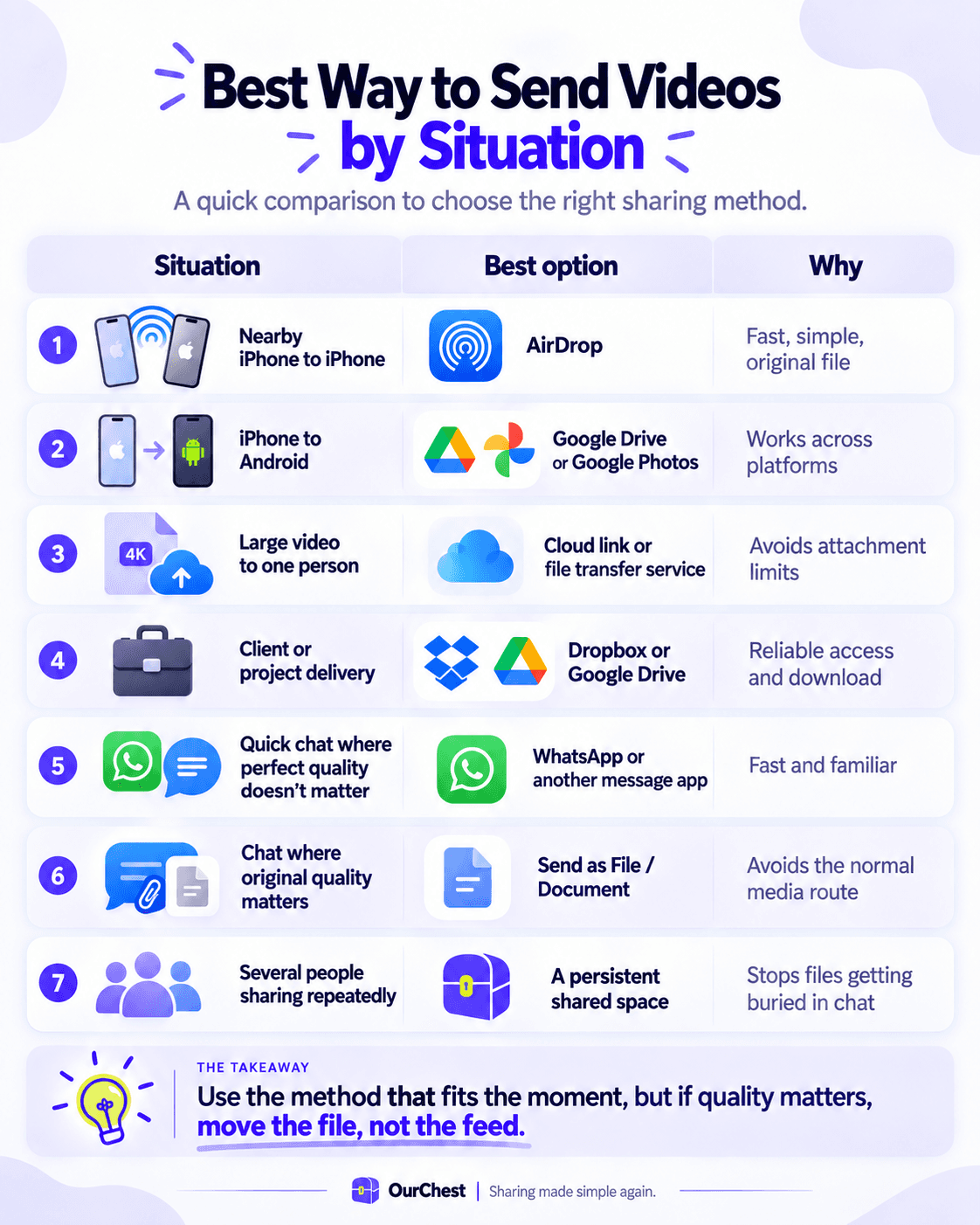
Best Ways to Send Videos by Situation
There is no single best way for every situation, so I would keep the decision fairly practical. The table below is the short version.
Situation | Best option | Why |
Nearby iPhone to iPhone | AirDrop | Fast, simple, original file |
iPhone to Android | Google Drive or Google Photos | Works across platforms |
Large video to one person | Cloud link or file transfer service | Avoids attachment limits |
Client or project delivery | Dropbox or Google Drive | Reliable access and download |
Quick chat where perfect quality does not matter | WhatsApp or another message app | Fast and familiar |
Chat where original quality matters | Send as File/Document | Avoids the normal media route |
Several people sharing repeatedly | A persistent shared space | Stops files getting buried in chat |
How to Send Videos From iPhone to Android Without Losing Quality
This is probably the most common awkward case because AirDrop disappears the second Android enters the room. The simplest options are Google Drive, Google Photos in Original quality, a cross-platform file transfer app that preserves the original, or a computer if the file is enormous.
What I would not do is send an important 4K video through five different message apps until one of them looks 'good enough'. If the file matters, send the file. The recipient can then download it at the same resolution you recorded.
Upload the video to Google Drive and share a link.
Use Google Photos in Original quality and share the video or album.
Use a cross-platform transfer app that preserves the original.
Copy the video through a computer when the file is too large for a convenient wireless transfer.
How to Send Large Videos Without Email Destroying the Experience
Email is great for text and fairly terrible at being a modern video transfer service. Large video files quickly exceed attachment limits, which means you either cannot attach them at all or you end up making a much smaller version just to squeeze it through.
For large files, upload the video to cloud storage or a transfer service and send a link instead. The recipient can download it when convenient, and you do not have to repeatedly upload the same video every time you send it to someone else. One upload and one link is much saner than treating a multi-gigabyte video like a PDF attachment.
Preserving Quality Starts Before You Hit Send
Not every quality problem comes from the sharing app. Sometimes the source file was already compromised before you tried to transfer it. If you care about good quality, it is worth checking the whole path from camera to recipient rather than blaming the final app for everything.
Recording
Use the resolution and frame rate you actually need. 4K is useful when you want the extra detail, but it also creates much larger files. That is not a reason to avoid it; it is simply a reason to choose a sensible way to send it.
Also avoid repeatedly saving edited copies through different apps if each export re-encodes the video. Every unnecessary conversion gives you another chance to lose quality.
Editing
When you edit a video, export once at a sensible high-quality setting. Repeatedly importing, editing, and exporting compressed files can slowly make the picture worse.
If your editor lets you choose resolution, bitrate, frame rate, and codec, match the important properties of the source unless you deliberately want a smaller file. The goal is not to create the biggest possible file for the sake of it; it is to avoid accidental quality loss.
Manual Compression
Sometimes you genuinely do want a smaller video. That is fine. The difference is that you should control the compression instead of letting a random app decide for you.
If a 20 GB video is ridiculous for the person receiving it, create a smaller high-quality export yourself. You know which resolution and bitrate you chose, you keep the original, and you are not left guessing what happened after you pressed Send.

The Bigger Problem: Sharing Should Not Need a Tutorial
This is the part that annoys me most. Sending one original-quality video is not technically difficult, yet the normal process can still end up as: 'Open Google Drive. No, the other Google account. I sent you access. Check your email. Click the link. No, request access.' We have made sharing technically powerful and socially annoying.
That problem is one of the reasons I started building OurChest. The idea is deliberately simple: create a Chest, invite the people you want, and put the original photos, videos, or files into it. The Chest is the shared place, so people should not need to care whether the person who uploaded something prefers Google Drive, Dropbox, iCloud, or none of them.
Most importantly, the original file stays the original. A thumbnail or preview can be smaller, but the uploaded video itself should not silently be replaced with a compressed copy. That is the standard I think sharing products should aim for.
If you are reading this before OurChest is available, the practical advice in this guide still stands. Whenever quality matters, move the original file and avoid workflows designed primarily for chat or social posting.

FAQ: Sending Videos Without Losing Quality
What is the best way to send videos without losing quality?
The best way is to transfer the original video file. Google Drive, Dropbox, iCloud, Google Photos in Original quality, direct transfer methods such as AirDrop, and file-sharing modes inside messaging apps can all work. The important part is that the service passes the original file rather than automatically creating a smaller media copy.
Does Google Photos reduce video quality?
It depends on your upload setting. If preserving the original matters, use Original quality rather than a storage-saving setting that reduces file size.
Can I send a full-quality video through WhatsApp?
If you send normal chat media, WhatsApp may optimize the video. When you need the original file, use a File or Document-style option where available instead of the normal gallery sharing flow.
What is the best way to send videos from iPhone to Android?
A Google Drive link or Google Photos is usually the simplest cross-platform option. For nearby devices, a cross-platform transfer app can also work as long as it preserves the original file.
Can I send large 4K videos by email?
Usually not as a normal attachment. Large videos quickly exceed email attachment limits, so uploading the file and sending a download link is generally easier and preserves better quality.
Does YouTube preserve the original video?
No. YouTube is a streaming and publishing platform, so uploaded videos are processed for playback. It can produce excellent viewing quality, but it is not a way to deliver the untouched source video file.
Do photos and pictures lose quality when shared too?
Yes. The same basic issue applies to photos and pictures. Messaging and social apps can resize or recompress images just as they do videos, so if the original matters, send the file or use a service that preserves original quality.
Is there a completely lossless way to send a video?
Yes. If the recipient receives the same original file you created, the transfer itself can be effectively lossless. Cloud file links, direct device transfers, and file or document sharing modes can all achieve this when they pass the original bytes through unchanged.

The Simple Rule
If there is one thing worth remembering, it is this: if video quality matters, send the file rather than relying on a feed or a normal chat-media upload.
Google Drive, Google Photos, Dropbox, iCloud, AirDrop, Telegram, WhatsApp's file-sharing route, and other apps can all work. The exact option matters less than the behavior. Avoid unnecessary compression, keep the original, and give the other person a simple way to access or download it.
Sending videos should not be complicated, and it definitely should not make your 4K camera look like it was pointed through a dirty pub window.