

Sending photos should be one of the easiest things a phone can do. You take a sharp picture, tap Share, pick a person, and they should receive the same picture. Somehow, that still is not always what happens.
A photo can leave your camera roll looking crisp and detailed, then arrive softer, smaller, or covered in compression artifacts because the app decided speed mattered more than image quality. That is fine for a throwaway picture in a group chat. It is less fine when you are sending family photos, something you want to print, or files a client actually needs.
The good news is that sending photos without losing quality is not complicated once you know which sharing methods preserve the original file and which ones quietly optimize it on the way out.
If you are dealing with video instead, I have a separate guide on how to send videos without losing quality. The principles overlap, but photo sharing has a few quirks of its own.
Quick answer: the best ways to send photos without losing quality
If you want the original quality, the safest rule is simple: send the photo as a file, use a direct device-to-device transfer, or use a cloud service that stores the original rather than relying on a normal chat-media upload.
Situation | Best option | Why |
Nearby Apple devices | AirDrop | Fast, direct and designed for Apple-to-Apple sharing |
Nearby Android devices | Quick Share | Direct local file sharing without using a chat app |
iPhone to Android | Google Drive, Google Photos or another cloud link | Works across platforms |
WhatsApp chat | HD for convenience; File/Document when the exact original matters | Normal media sharing can optimize the image |
Lots of photos | Shared gallery or cloud folder | One place to browse and download instead of dozens of messages |
Client or print delivery | Original files via cloud/file transfer | Preserves resolution and gives the recipient proper downloads |
If the photo is important enough that you would be annoyed if it lost detail, do not trust a generic Send button without knowing what the app does to the file.
Why photos lose quality when you send them
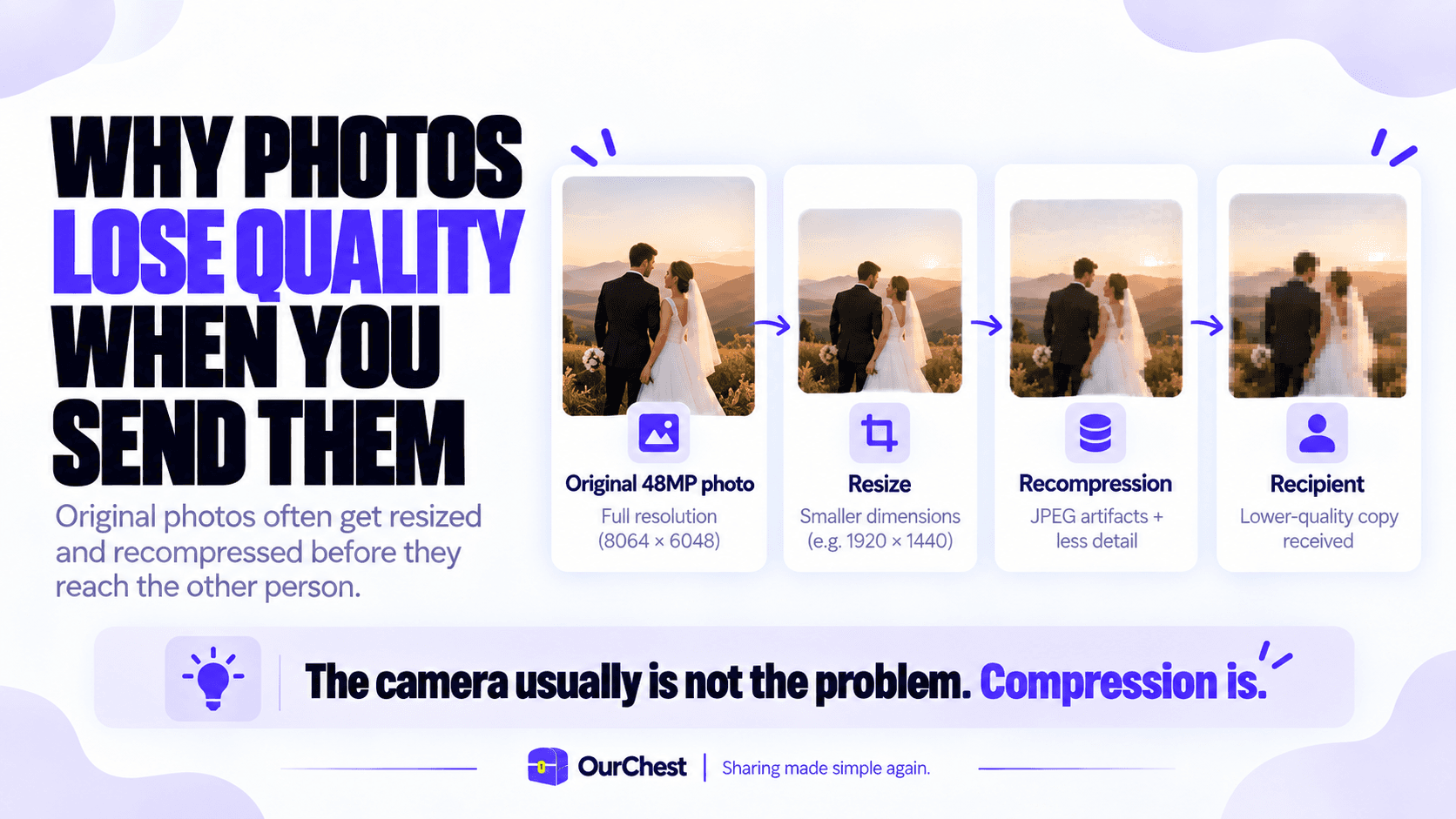
Most image quality loss comes from compression and resizing. A modern phone camera creates a fairly large image because it contains a lot of pixels and detail. Messaging apps want the opposite: smaller files that upload quickly, use less data, and load instantly in a conversation.
So the app may resize the image, recompress it as JPEG, strip metadata, or generate a smaller copy for delivery. The result can still look perfectly acceptable on a phone screen, which is why people often do not notice until they zoom in, crop the picture, open it on a monitor, or try to print it.
There is also an important distinction between lossy and lossless compression. Lossless compression reduces file size without throwing image data away. Lossy compression saves more space by permanently discarding information. Once that detail is gone, downloading the picture again does not bring it back.
Lower resolution: fewer pixels than the original camera image.
JPEG recompression: fine detail can turn into smearing, blockiness or noise.
Format conversion: HEIC, RAW or another format may be changed for compatibility.
Metadata changes: location, camera details or editing history may be removed.
Preview instead of original: the recipient may be looking at an optimized copy rather than the source file.
HD quality is better, but it is not always original quality
This catches people out because apps increasingly offer an HD button. HD is useful, and for normal sharing it is often good enough, but 'HD' and 'original quality' are not automatically the same thing.
WhatsApp, for example, lets you choose HD quality for photos and videos. That is a much better option than a standard media send when you care about detail. But if the exact source file matters, sending the photo through a File or Document-style route is the safer mental model because you are asking the app to transfer a file rather than optimize an image for chat.
The same logic applies elsewhere. If an app gives you a choice between something labelled Original, Full resolution, File, Document, or Current format and a normal gallery send, choose the file-preserving option when quality matters.

How to send photos without losing quality on WhatsApp
WhatsApp is probably where this question comes up most because it is where a huge amount of everyday photo sharing happens. The app is built for fast messaging, so the normal image gallery flow is optimized around convenience.
For casual pictures, select HD before sending. You can also set HD as the default media upload quality inside WhatsApp settings. That gives you a better-looking image without changing how you normally use the app.
For photos where you actually need the original file, use the attachment/file route rather than treating the picture as ordinary chat media. The interface varies slightly between iPhone and Android, but the idea is the same: browse to the file and send it as a file/document instead of pulling it through the standard image picker.
There is a usability trade-off. A photo sent as a file is not quite as nice inside the conversation because the recipient may need to tap it before they get the full preview. That is the price of telling the app 'do not be clever with this'.

How to send full-quality photos on iPhone and iPad
Apple gives you several good options, but which one I would use depends on whether the other person is nearby and whether they are also using Apple devices.
AirDrop
For an iPhone, iPad or Mac nearby, AirDrop is still one of the cleanest options. Open the Photos app, select the pictures, tap Share, choose AirDrop, and send them directly to the other device.
Apple also gives you useful sharing controls. In the share options you can choose Current to avoid a file-format conversion, and AirDrop can include all photo data when you want the original file plus edit history and metadata. That is useful for RAW, ProRAW, Live Photos, or anything you plan to edit later.
Messages app
The Messages app is convenient when both people are already using iMessage, but check the settings if you care about full-size images. Apple can send lower-quality previews in some situations, and SMS/MMS fallbacks can introduce carrier attachment limits.
If you are troubleshooting this, open the Settings app, go to Apps, then Messages, and check the photo quality options. If the image absolutely must arrive as the original file, AirDrop or an iCloud/cloud link removes more ambiguity.
iCloud links
An iCloud link is useful when you have several photos or want someone to browse an image gallery instead of receiving twenty separate message bubbles. It also works when the recipient is not standing next to you, although cross-platform convenience is still better with a service that everyone already uses.

How to send photos without losing quality on Android
On Android, Quick Share is the obvious starting point for nearby transfers. Open the photo, tap Share, choose Quick Share, then select the nearby device. It is designed for sending photos, videos and files locally rather than pushing everything through a social or messaging service.
For long-distance sharing, Google Photos and Google Drive are usually the easiest options because they work across Android, iPhone and a normal web browser.
If you use Google Photos, check your backup setting. Google explicitly separates Original quality from Storage saver. Original quality stores photos in the same resolution they were taken, while Storage saver can compress or resize them. That setting matters if you later share or download pictures you expected to be untouched.
Google Photos, Drive and Dropbox: good for cross-platform sharing
Cloud links are not exciting, but they solve one of the most annoying problems in photo sharing: the other person does not need to own the same phone as you.
Google Photos is good when the content is naturally an image gallery. People can browse a shared album instead of digging through files, and Original quality is available when you want to keep the source resolution.
Google Drive and Dropbox are better when you want to treat the pictures as files. Upload the originals, share a link, and let the recipient download what they need. For photographers, designers or anyone moving RAW files, that is often preferable to a gallery-first experience.
The annoying part is permission and account friction. Anyone who has sent a Drive folder and immediately received a 'request access' message knows the problem. Dropbox file requests can reduce some of that friction when you are collecting files from other people rather than simply sharing your own.

Sending an image gallery without ruining the originals
One photo is easy. Fifty photos is where people start making bad decisions.
If you are sharing a holiday, wedding, baby album, property shoot, or anything else with a lot of pictures, do not send every image as a separate message unless the chat itself is the point. Use a shared image gallery, album, folder, or persistent space where people can browse the set and download the originals they care about.
That keeps the conversation readable and also stops the same photos being saved, re-sent, screenshot, cropped and compressed over and over. Every extra hop creates another chance for quality to change.
The key features I would actually care about are pretty simple: original-quality storage, easy access from iPhone and Android, bulk download, a clean gallery, and no ridiculous setup for the recipient.
Email: fine for a couple of photos, annoying for everything else
Email is perfectly reasonable when you are sending one or two normal-sized images. Attach the files rather than pasting them into the message body and keep an eye on attachment limits.
The moment you are sending a large batch, RAW files, or high-resolution pictures from a modern camera, email becomes the wrong tool. You either hit the size limit or start manually shrinking files just to make the message leave your outbox. At that point, upload once and send a link.
Do editing, filters and crops reduce photo quality?
They can, but editing itself is not the enemy. The problem is repeated destructive export.
Apps such as Apple Photos, Google Photos and Lightroom can keep edits non-destructive, which means you can adjust light, crop the subject, apply filters, remove an object, change focus-related effects, or modify the image without repeatedly degrading the original. Trouble starts when you save a compressed JPEG, edit that new file, save it again, then repeat the process several times.
If you know a picture will be printed or heavily edited later, keep the original. Make your changes, export once at the quality you actually need, and send that file.
What about RAW, ProRAW and professional photos?
RAW files are where 'looks basically the same' stops being good enough. A RAW file contains far more data for editing than a normal JPEG or HEIC image, so converting it before delivery can defeat the entire reason you shot RAW in the first place.
For professional work, transfer the files as files. Use AirDrop locally, Quick Share where appropriate, a cloud drive, or a dedicated transfer service. Let the recipient decide how to process the image rather than letting a messaging app decide for them.
The same applies to high-resolution camera pictures that will be cropped aggressively, used in design work, or printed large. A compressed preview may look fine on a phone and still be the wrong file for the job.
The recurring problem is not really compression
Compression is the obvious symptom, but for family sharing the bigger problem is usually fragmentation. One person sends photos in WhatsApp, someone else uses LINE, another uploads to Google Photos, and six months later the pictures you actually care about are spread across three chats, two phones and a cloud account nobody remembers the password for.

That is the problem we are building OurChest around. A Chest is meant to be one simple shared place for the people you choose. Photos can go in from the places you already use, and the people receiving them should be able to open the Chest without being forced through another account-creation flow.
The product direction is deliberately not 'yet another storage dashboard'. The useful part is making sharing easier: one place for the originals, simple access for family and friends, and eventually optional copies to the cloud provider each person prefers.
If you only need to send one picture today, use one of the methods above. You do not need a new product for that. OurChest makes more sense when the same group keeps sharing the same kind of important photos again and again.

Choosing the right method
What you are doing | Use this | Avoid |
Sending one photo nearby between Apple devices | AirDrop | Uploading it somewhere first |
Sending one photo nearby from Android | Quick Share | A chat app if exact quality matters |
Sending from iPhone to Android | Google Photos, Drive, Dropbox or another cloud link | MMS/SMS fallback |
Sending in WhatsApp | HD for convenience, File/Document for the original | Standard media send when quality matters |
Sharing an album with family | Shared gallery or persistent shared space | Dozens of separate chat messages |
Sending RAW or client files | File transfer/cloud drive | Social media or normal message attachments |
Sending a video | Use the dedicated video guide | Assuming photo settings work identically for video |
FAQ: sending photos without losing quality
What is the easiest way to send photos without losing quality?
For nearby devices, use AirDrop on Apple or Quick Share on Android. For long-distance or cross-platform sharing, use a cloud link or send the original as a file rather than normal chat media.
Does WhatsApp reduce image quality?
WhatsApp gives you Standard and HD media options, and HD is the better choice when you want a nicer-looking image in chat. If you need the exact original file rather than an optimized media version, send it as a file/document.
How do I send full-resolution photos from iPhone to Android?
A cloud link is usually the simplest option. Google Photos in Original quality, Google Drive, Dropbox, or another file-sharing service avoids relying on an Apple-only workflow.
Does Google Photos keep original image quality?
It can. Google Photos has an Original quality backup setting that stores photos at the same resolution they were taken. Storage saver is specifically designed to reduce storage use and can compress or resize images.
Can I send photos through Messages without losing quality?
iMessage is much better suited to high-quality Apple-to-Apple sharing than SMS/MMS, but device and network settings can affect what is sent. If exact fidelity matters, AirDrop or an original-file link is less ambiguous.
Will screenshots lose quality?
A screenshot creates a new image at the screen's resolution. It may be perfectly good for showing something quickly, but it is not the original photo and should not be used when you need the source image for printing, editing or archiving.
What is the best option for lots of pictures?
Use a shared image gallery, cloud folder, or persistent shared space. It is easier to browse, easier to download, and far less messy than sending a hundred separate messages.
The simple rule
When image quality matters, move the original file instead of trusting whatever default sharing route happens to be in front of you.
AirDrop, Quick Share, Google Photos, Google Drive, Dropbox, WhatsApp file sharing and similar tools can all work. The exact app matters less than whether it preserves the original and gives the recipient an easy way to download it.
Your camera already did the hard part. There is no reason the Share button should undo it.

